
Setting Up a New Smartphone Without Losing Your Old Data
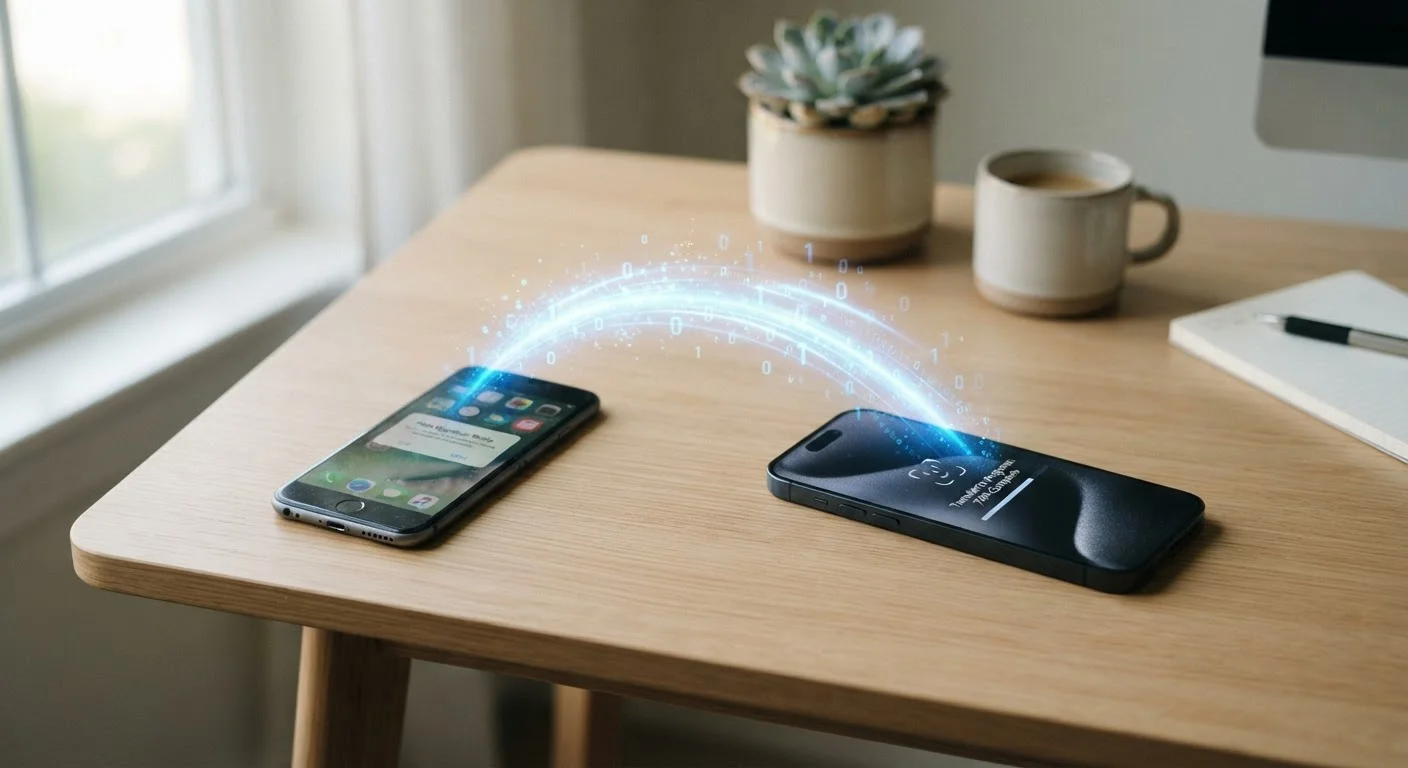
Photo credit: TurboBlogs.net | Explore Blogs At Turbo Speed
Switching phones doesn't have to mean starting over. A practical walkthrough for safely transferring contacts, apps, photos, and settings.
Key Takeaways
- Back up your old phone fully before beginning any transfer to avoid permanent data loss.
- Both Android and iPhone offer built-in migration tools that handle most data automatically.
- Contacts, photos, and app data each require slightly different steps to transfer completely.
- Verify your backup is complete and accessible before wiping or trading in your old device.
- Resetting privacy and security settings on your new phone is a step most people overlook.
Why Preparation Is the Most Important Step
Most phone transfer problems don't happen during the transfer - they happen because someone skipped preparation. A contact list that was never properly synced to the cloud, a two-factor authentication app without a backup method, or a nearly full iCloud account that silently failed to back up: these are the issues that cause real data loss. The good news is that all of them are preventable.
Modern smartphones - both Android and iPhone - have made the transfer process significantly smoother over the past few years. Built-in migration tools handle the bulk of the work automatically. But understanding what those tools do and don't cover puts you in a much better position to catch anything that slips through.
What you will need
It's also worth noting that your new phone is an opportunity to start fresh with better habits. Many people carry over cluttered notification settings, overly permissive app permissions, and outdated privacy configurations from device to device without realizing it. For additional context on how common privacy assumptions can mislead, see our article on digital privacy myths that create a false sense of security.
Google One or iCloud account
Stores your cloud backup, including contacts, photos, and app data, ready to restore on the new device.
USB-C or Lightning cable
Used for wired device-to-device transfers, which are typically faster and more reliable than wireless.
Manufacturer transfer app (e.g., Move to iOS, Samsung Smart Switch)
Platform-specific apps that streamline the migration of messages, contacts, and settings between devices.
SIM card ejector tool or small pin
Used to remove the physical SIM card from your old phone and insert it into the new one.
Step-by-Step: Transferring Your Data
Follow these steps in order. Skipping ahead - particularly to using the new phone before the backup is confirmed - is the most common source of problems.
Back up your old phone completely
Before touching your new device, create a full backup of your old one. On iPhone, go to Settings > [Your Name] > iCloud > iCloud Backup and tap Back Up Now. On Android, navigate to Settings > System > Backup and confirm your Google account backup is active and up to date. Wait until the backup completes - this can take several minutes depending on how much data you have.
Also back up any data that may not be covered by cloud backups: downloaded music, offline maps, and app-specific data like game progress that isn't cloud-synced.
Secure your two-factor authentication before swapping
If you use SMS-based two-factor authentication (2FA), your codes will stop arriving once your old SIM is deactivated. Before you switch, add an authenticator app like Google Authenticator or Microsoft Authenticator as a backup method for your critical accounts - email, banking, and social media. This step prevents being locked out during or after the transfer.
Use the built-in transfer tool during new phone setup
When you power on your new phone for the first time, both Android and iPhone walk you through a setup wizard that includes a data transfer option. On iPhone, use Quick Start - hold the old iPhone near the new one and follow the on-screen prompts. On Android, choose Copy data from old device and either connect via cable or follow the wireless pairing steps. These tools transfer contacts, photos, app lists, messages, and many settings in one pass.
Verify contacts, photos, and messages transferred correctly
Once the transfer completes, audit the key categories before assuming everything made it. Open your contacts app and confirm counts match. Open your photo library and scroll to confirm recent photos are present. Check your messaging app - SMS messages typically transfer with manufacturer tools, but third-party messaging apps may need individual re-authentication or their own data exports.
Reinstall and log back into your apps
Your new phone will often restore a list of previously installed apps, but you'll need to log into most of them again. Work through your most-used apps first: email, banking, streaming services, and password managers. Re-enable biometric login (Face ID or fingerprint) where applicable. For apps that store data locally - note-taking apps, offline games - check whether the data synced via cloud or needs to be exported and imported manually.
Review and configure your privacy settings
A new phone ships with default settings that may share more data than you prefer. On iPhone, go to Settings > Privacy & Security and review location, microphone, camera, and tracking permissions. On Android, open Settings > Privacy and audit app permissions. Also revisit notification settings - now is a good time to disable unnecessary alerts rather than carrying over cluttered habits from your old device.
While you're reviewing your settings, consider checking the privacy permissions on any smart home apps you use. Our guide on what data your smart home devices collect is a useful reference.
Confirm everything works before letting go of your old phone
Spend 24-48 hours using the new phone as your primary device while still keeping the old one accessible. Make test calls, confirm voicemail works, check that email and push notifications arrive normally, and run through any apps you depend on daily. Once you're confident nothing is missing, you can safely wipe the old device using its factory reset option before recycling or selling it.
Charge Both Phones Throughout the Process
Data transfers - especially large ones involving thousands of photos - can drain batteries faster than normal use. Plug both devices in before you begin and leave them connected throughout. A transfer interrupted by a dead battery can result in incomplete data and require starting the process over.
Once your data is confirmed and your new device is fully configured, it's a good moment to think about long-term care. Battery health is one of the most significant factors in how well a phone performs over time. Our guide on slowing down smartphone battery degradation covers the charging habits that make the biggest difference from day one.
Don't Wipe Your Old Phone Too Early
Many people factory reset or trade in their old device the same day they switch, only to realize later that something didn't transfer. Give yourself at least two full days of normal use on the new phone before wiping the old one. This window costs nothing and can save you from unrecoverable data loss.
Verify Your Backup Before You Begin
A backup that appears to exist but is incomplete - due to insufficient iCloud or Google storage, a dropped Wi-Fi connection, or a software glitch - provides no real protection. Before starting any transfer, open your backup settings and confirm the backup completed successfully and the file size looks reasonable. If your cloud storage is nearly full, free up space or add more before backing up.

Author
Tech & Electronics Editorial Team
Tech & Electronics Editorial Team is the collective byline for our editorial team and contributor network. Articles published under this byline or an editorial pen name are researched, written, and reviewed according to our editorial standards for clarity, consistency, and independence before publication.
View all articles →