
Home Wi-Fi Explained: Routers, Bands, and Why Your Signal Drops
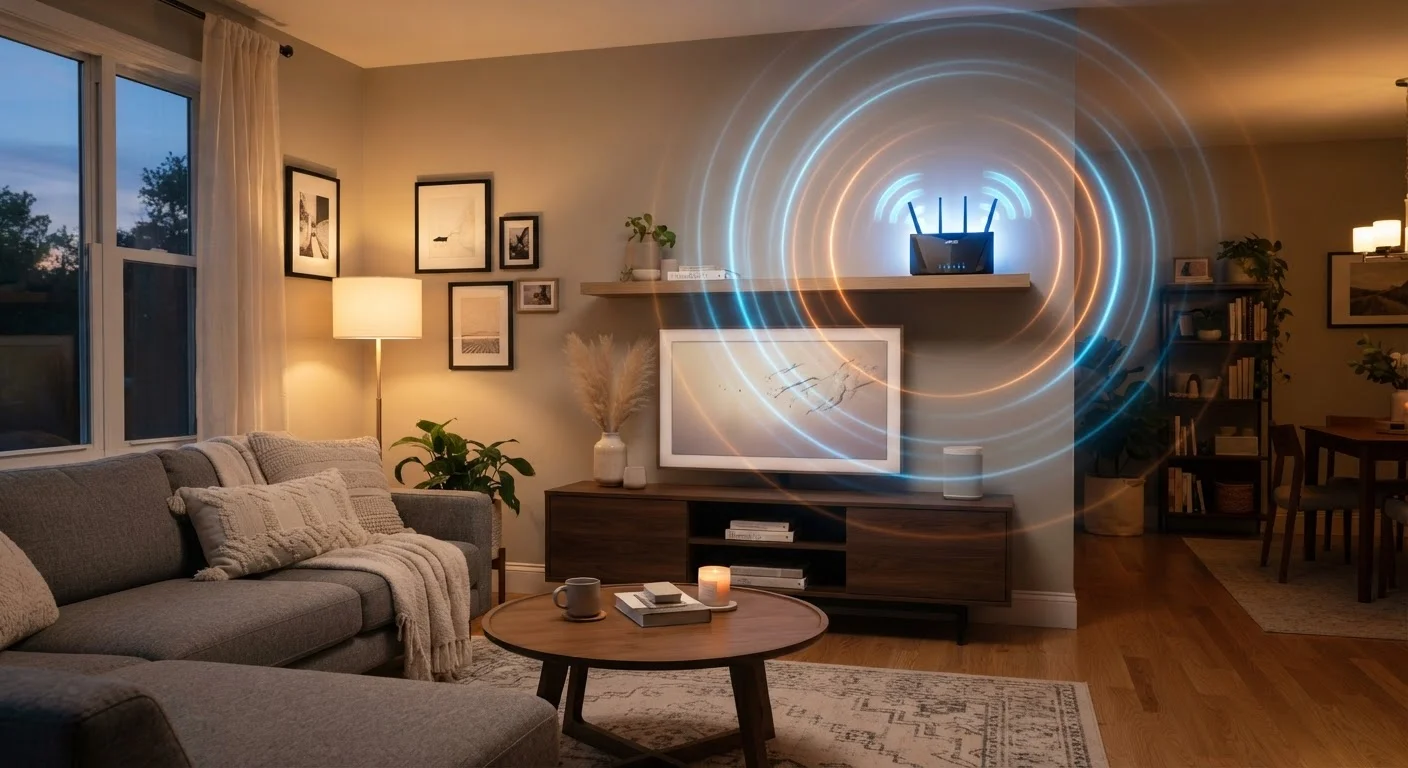
Photo credit: TurboBlogs.net | Explore Blogs At Turbo Speed
In this article
Understand the difference between 2.4GHz and 5GHz, what a router actually does, and why walls kill your Wi-Fi signal.
Key Takeaways
- Your router is the device that creates your home Wi-Fi network — your modem connects you to the internet.
- 2.4 GHz signals travel farther but carry less data; 5 GHz is faster but loses strength over distance.
- Walls, floors, and appliances absorb and scatter Wi-Fi signals, causing dead zones.
- Router placement has an outsized impact on coverage — central, elevated locations work best.
- Most signal problems can be resolved without buying new hardware.
What Your Router Actually Does
Most people think of a router as the box that provides internet. In reality, your router creates a local wireless network inside your home — your modem is what connects that network to the internet at large. The router acts as a traffic manager: it assigns addresses to each device, routes data packets to the right destination, and enforces basic security rules.
When you load a webpage, your device sends a request to the router, which forwards it through the modem to the internet, retrieves the response, and delivers it back — all in milliseconds. Understanding this distinction matters because many home Wi-Fi problems are actually modem or ISP issues, not router issues at all.
For a deeper look at how to build on this foundation, see our guide to setting up a home network that covers every room.
~70%
U.S. households with home broadband
According to Pew Research Center data, approximately 7 in 10 American adults have broadband internet at home, making home Wi-Fi one of the most widely used technologies in the country.
2x
Speed advantage of 5 GHz over 2.4 GHz
Under comparable conditions, 5 GHz connections can deliver roughly double the throughput of 2.4 GHz, though actual gains depend on the router standard, device capability, and distance.
45%
Signal loss through a single brick wall
Industry testing has shown that a standard brick wall can reduce Wi-Fi signal strength by 40–50%, with concrete and reinforced walls causing even greater attenuation.
The Two Bands: 2.4 GHz vs. 5 GHz
Modern routers broadcast on two radio frequency bands, and choosing between them involves a real trade-off. The 2.4 GHz band uses longer radio waves that pass through walls and travel farther, but it carries less data and is heavily congested — every neighboring Wi-Fi network, many cordless phones, and even microwave ovens operate in this range.
The 5 GHz band delivers significantly faster speeds but has a shorter effective range. Its shorter radio waves lose energy more quickly and are more easily blocked by solid materials. A device sitting two rooms away from the router will likely get better performance on 2.4 GHz than a weak 5 GHz signal.
A practical rule: put laptops and streaming devices in the same room as the router on 5 GHz; assign smart plugs, thermostats, and other low-bandwidth gadgets to 2.4 GHz. Many current routers handle this automatically. To understand how the underlying Wi-Fi generation affects these bands, our article on what Wi-Fi standards actually mean for your home network explains it clearly.
Quick Band Assignment Tip
If your router broadcasts separate network names for 2.4 GHz and 5 GHz (for example, "HomeNetwork" and "HomeNetwork_5G"), connect stationary smart home devices to the 2.4 GHz network and your primary laptop or streaming device to 5 GHz. This simple habit reduces congestion on both bands and generally improves overall performance.
Why Walls, Floors, and Interference Kill Your Signal
Radio waves do not travel equally through all materials. Drywall causes modest signal loss; brick, concrete, and tile cause far more. Metal objects — appliances, filing cabinets, foil-backed insulation — can reflect or entirely block Wi-Fi signals. Water is particularly effective at absorbing 2.4 GHz waves, which is why a large fish tank or even a water-filled wall cavity can create an unexpected dead zone.
Interference from neighboring networks compounds the problem in dense housing. When many routers are broadcasting on the same channel in the same frequency band, they compete and slow each other down. Most routers can automatically select a less congested channel, but this setting occasionally needs a manual nudge.
Physical placement of your router addresses most of these issues before they start. Our article on why router placement matters more than its specs covers the specific physical factors that shape your coverage.
Channel Congestion in Apartments
In multi-unit buildings, dozens of neighboring routers may be broadcasting on the same channels. Most routers offer an automatic channel selection mode, but if your speeds are erratic, logging into your router's admin interface to manually select a less-used channel can help. For 2.4 GHz, channels 1, 6, and 11 are the only non-overlapping options — selecting one of these reduces interference from nearby networks.
Practical Steps When Your Signal Underperforms
Before assuming you need new hardware, work through the basics. Restart your router by unplugging it for 30 seconds — this resolves a surprising number of slowdowns caused by memory buildup or stalled connections. Next, check where the router is sitting: inside a cabinet, on the floor, or in a corner significantly reduces its effective range. A central, elevated location with clear line of sight to the areas you use most is nearly always better.
If specific rooms consistently get poor coverage, a mesh Wi-Fi system is generally more effective than a traditional range extender. Extenders rebroadcast the signal but cut available bandwidth in the process; mesh nodes communicate with each other on a dedicated channel, maintaining more of the original speed.
For households that use Wi-Fi in genuinely different ways from location to location — streaming in the bedroom, video calls in a home office, smart devices throughout — planning the network deliberately pays dividends. Our home network setup guide walks through that planning process step by step.
Frequently Asked Questions

Author
Tech & Electronics Editorial Team
Tech & Electronics Editorial Team is the collective byline for our editorial team and contributor network. Articles published under this byline or an editorial pen name are researched, written, and reviewed according to our editorial standards for clarity, consistency, and independence before publication.
View all articles →